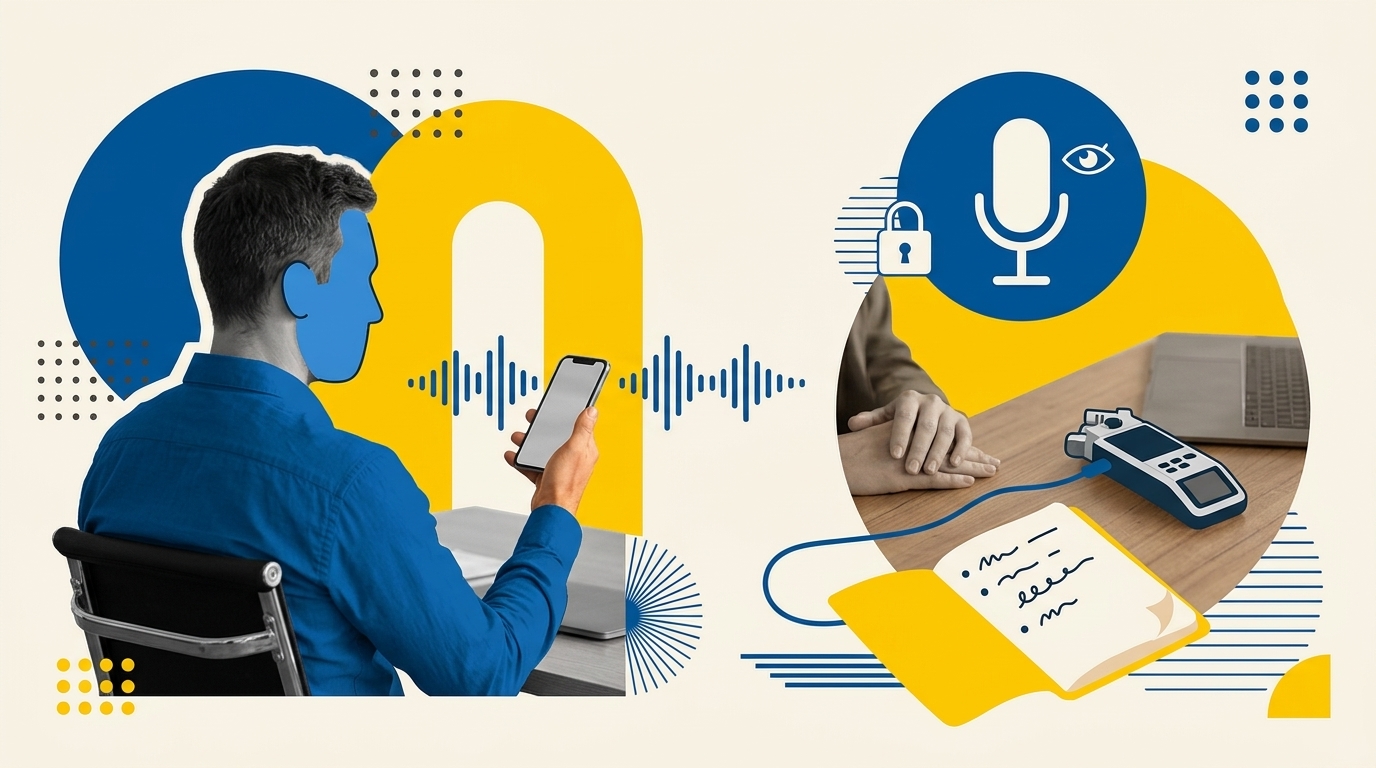
An in-person AI note taker captures room audio through your phone, laptop, or a wearable device, then produces a transcript, summary, and action items without sending a bot into any meeting link. The core distinction from cloud bot tools is where audio is captured (locally, in the room) and where it is processed (either a vendor cloud or on your own device). Which approach fits your situation depends on your privacy requirements, the room setup, and how much friction you can tolerate at the start of a meeting.
This article covers the main categories of in-person AI note takers, how to pick between them, consent and privacy considerations, and practical setup guidance. If you also run virtual calls and want a broader comparison that includes bot-based recorders, see the Boost With AI AI meeting recorder roundup.
How In-Person AI Note Taking Differs from Bot-Based Recording
Bot-based tools like Fireflies or Otter’s meeting-joiner mode work by accepting a calendar invite, joining a video call as a named participant, and streaming audio to a vendor server in real time. That model breaks entirely for physical meetings because there is no call to join.
In-person tools use one of three capture methods:
- Phone or laptop mic recording: You open an app, tap record, and the device microphone captures the room. Audio is either processed locally or uploaded to the vendor after the meeting ends.
- Dedicated hardware recorder: A purpose-built device such as the Plaud NotePin S clips to clothing or sits on the table, captures all speakers, and syncs a transcript to a companion app. Better range for larger rooms.
- Local on-device processing: Tools running Whisper or a comparable model on your Mac, PC, or phone transcribe audio without sending it to any external server. Maximum privacy, but requires more setup and capable hardware.
All three avoid the visible bot entry, the recording-started announcement, and the calendar-permission requirement.
The Main Options: A Practical Comparison
The table below summarises the tools most commonly cited in this space as of late 2026. Pricing is taken from official sources and third-party verification checks completed in July to September 2026. Treat exact figures as a starting point and confirm before purchasing. The Wispr Flow link is a referral link.
| Tool | Capture method | Processing location | In-person support | Free tier | Entry paid price (verified) |
|---|---|---|---|---|---|
| Jamie | Desktop or mobile app mic | EU cloud (Frankfurt), audio deleted after transcription | Yes, any platform or in-person | 10 meetings/month, 30-min cap | €25/month (Plus) |
| Granola | System audio capture, Mac-native | Local capture, cloud AI enhancement post-meeting | Yes, via device mic for in-room audio | Yes (limited meetings) | $14/user/month (Business) |
| Bluedot | Phone, tablet, or Apple Watch mic | EU or US cloud, no AI training on data | Yes, phone or wearable in room | Limited free use | ~$18/month |
| Plaud NotePin S | Wearable hardware device (clips to clothing) | Cloud via companion app | Yes, purpose-built for room capture | No (hardware purchase required, ~$160+) | Hardware + subscription |
| Meetily | Desktop mic or system audio | 100% local (self-hosted, Whisper or Parakeet) | Yes, works offline after setup | Community Edition free | Free (self-hosted) |
| Wispr Flow Notetaker | Laptop mic (Mac and Windows), no phone app yet | Cloud, audio leaves the device | Yes, records from the computer mic | Yes (weekly meeting limit) | $15/month, or $12/month billed annually (Flow Pro) |
| Fellow | iOS or desktop app, botless | Vendor cloud | Yes, iOS app red record button | Yes | Contact for team pricing |
Which Option Fits Your Situation
You want minimal setup and basic privacy
Jamie is a practical starting point for most solo users and small teams. It runs as a desktop or mobile app with no bot, captures in-person and virtual meetings from the same interface, and deletes audio after transcription. Data stays in EU servers, and the tool is ISO 27001 certified on all plans including free. The free plan covers 10 meetings per month at up to 30 minutes each, which is enough to evaluate it without a card. Paid tiers start at €25/month. Source: Jamie pricing and GDPR compliance page (checked September 2026).
You prefer a hybrid human-AI notes model
Granola takes a different approach: you jot rough notes during the meeting, and the AI enhances them into structured summaries afterward. Audio is captured locally on your Mac, though the AI enhancement step requires an internet connection post-meeting. It has a loyal following among consultants and founders who want notes that reflect their own framing rather than a purely algorithmic summary. Available on macOS, Windows, iOS, and Android.
You already dictate by voice and want notes in the same app
Wispr Flow Notetaker is a reasonable pick if you work on a Mac or Windows laptop and already use, or want to try, voice dictation. Wispr Flow is best known as a dictation app, and in August 2026 it added Notetaker, a bot-free meeting recorder that captures audio through your computer’s microphone. Wispr’s own documentation says it works for in-person meetings such as conference rooms and coffee chats, and it can start a recording for a conversation that was never on your calendar. The free plan includes Notetaker with a weekly meeting limit, and Flow Pro costs $15 per month or $12 per month billed annually.
Two limits matter for this use case. There is no phone app for Notetaker yet, so you need a laptop in the room. Processing also happens in the cloud: Wispr states it is SOC 2 Type 2 compliant, but also notes that some Notetaker features rely on third-party AI providers that are not covered by its zero data retention agreements. If audio must never leave your device, a local option like Meetily is the safer choice. Granola is the closest alternative for Mac users who prefer writing their own notes, and Jamie suits teams that want EU hosting. Source: Wispr Flow data controls page and Notetaker page (checked October 2026).
You can try Wispr Flow through this referral link. It is an affiliate-style link, so Boost With AI may receive a benefit if you sign up.
You need hardware for larger rooms or hands-free capture
Phone-on-the-table capture degrades in rooms larger than a boardroom or in noisy environments. The Plaud NotePin S is a wearable recorder that clips to clothing and is described by the manufacturer as covering up to 20 hours of battery life for a full day of sessions. It requires a hardware purchase (around $160 or more) plus an ongoing subscription, so the total cost is higher than software-only options. Best justified when room acoustics make phone recording unreliable.
You handle regulated or sensitive data and need local processing
Meetily is an open-source, self-hosted tool that runs transcription using Whisper or Parakeet entirely on your own hardware. According to the Meetily self-hosted guide, once initial model download is complete the tool works fully offline: no audio or transcript leaves your device. A Community Edition is available at no cost. The trade-off is setup complexity: you need to install Ollama and configure local models, which takes technical comfort. For regulated industries such as healthcare or legal, local processing can reduce third-party transcription exposure, though no tool alone makes a workflow HIPAA-compliant without additional organisational controls.
You want one tool for both in-person and virtual meetings
Bluedot and Fellow both support botless in-person capture on mobile alongside their virtual-meeting workflows. Bluedot records from phone, tablet, or Apple Watch and offers EU or US data storage with no AI training on recordings. Fellow records via iOS app with collaborative agendas and meeting templates built in. Both are practical if you want a single interface across meeting types without managing separate tools.
Consent, Privacy, and Legal Considerations
Recording in-person conversations carries legal obligations that vary by country and jurisdiction. Many US states and most EU countries require the consent of all parties being recorded (two-party or all-party consent rules). The absence of a visible bot does not reduce or eliminate these obligations: recording someone without their knowledge or consent in a covered jurisdiction may be unlawful regardless of what software you use.
Practical steps before recording:
- State clearly at the start of the meeting that you are recording and taking AI-assisted notes. A brief verbal notice is the minimum. Written consent is stronger for sensitive discussions.
- Check your jurisdiction’s rules. The EU one-party consent map differs from US state law. Regulated industries (finance, healthcare, legal) often have additional obligations.
- Understand where your audio goes. Tools that send audio to a cloud vendor create a data processor relationship. Check the vendor’s data processing agreement, retention policy, and sub-processor list before using them for client or commercially sensitive conversations.
- Prefer audio deletion after transcription when the meeting content is sensitive. Jamie, for example, states that audio is deleted once transcription is complete and is not used for model training.
For teams in sectors with formal compliance requirements, local processing tools like Meetily or MacWhisper remove the cloud data-flow risk at the cost of self-managed infrastructure.
Getting Started: A Basic Workflow for Beginners
This workflow uses a phone-based app (Jamie or Bluedot) as the illustrative example. Adapt it for other tools.
- Install the app and create a free account. Confirm mic permissions are granted for the app on your device.
- Set meeting context. Most apps let you enter a meeting title, participants, and agenda before you start. This context improves summary quality.
- Place your phone centrally on the table with the mic facing the room. A distance of less than two metres from the primary speaker produces reliable accuracy. Larger rooms need hardware.
- Announce the recording to all participants before pressing record.
- Tap record and set the phone face-down or screen-off to minimise distraction. Do not cover the mic.
- After the meeting, wait for the transcript and summary to generate (seconds to a few minutes depending on tool and connection). Review and edit before sharing.
- Export or share selectively. Most tools produce a shareable summary link or Markdown/text export. Share the summary, not necessarily the raw transcript, unless requested.
Failure cases to expect: background noise from HVAC, overlapping speakers in fast-paced discussions, and accents or domain vocabulary the model has not been fine-tuned on. Reviewing and editing before sharing is always the right habit, particularly when action items will drive follow-up work.
For teams already using AI to support broader meeting operations, AI tools that support lean marketing team workflows covers adjacent productivity automations that connect well with meeting notes output.
Frequently Asked Questions
Can I use an in-person AI note taker without any internet connection?
Yes, if you use a fully local tool. Meetily, once set up with local Whisper models, runs entirely offline. MacWhisper in local mode and Notta’s Desktop Privacy Mode (currently in beta) also support offline transcription after the model is downloaded. Most phone-based apps like Jamie or Bluedot require an internet connection to process and return the transcript, even though they do not join a meeting link.
How accurate are in-person AI transcripts compared to call recordings?
Accuracy depends primarily on audio quality rather than the tool. A phone placed centrally in a quiet room of four to six people can produce transcripts accurate enough for practical use. Accuracy drops in larger rooms, noisy environments, heavy accents, or when multiple people speak simultaneously. Hardware devices with dedicated microphones generally outperform phone apps in large-room conditions.
Do I need to tell people in a meeting that I am using an AI note taker?
In most jurisdictions with all-party or two-party consent requirements, yes. The absence of a visible bot does not change the legal requirement to inform participants that their voice is being recorded. Verbal disclosure at the start of a meeting is a minimum baseline. Always check the specific rules that apply to your location and sector.
What is the difference between “bot-free” and “local processing”?
Bot-free means the tool does not join a meeting as a visible participant. It captures audio through your device’s mic or system audio instead. Local processing is a separate property: it means the audio is transcribed on your own device, not sent to a vendor cloud. A tool can be bot-free and still send audio to a cloud server for processing (Jamie, Granola, Bluedot, Wispr Flow). True local processing (Meetily, MacWhisper) keeps audio entirely on your hardware.
Which in-person AI note taker is best for a team new to this workflow?
Jamie is the most accessible starting point for a beginner team: free plan, no bot, works for both in-person and virtual meetings from one app, and the EU hosting and GDPR posture reduces the compliance conversation for most European and privacy-conscious teams. Granola suits individuals on Mac who prefer a hybrid human-AI note model. If the team already uses Fireflies or Fellow for virtual calls, use those tools’ mobile in-person recording features before adding a new vendor.

1 comment
[…] vocal biometric patterns, names, project scopes, and job titles. When using software like an in-person AI note taker, teams must establish whether recorded spoken conversations enter third-party cloud servers and […]