

TL;DR — Key Takeaways
- ChatGPT can turn vague goals into specific, actionable task lists in seconds.
- Todoist is a free task manager that keeps those tasks organized and trackable.
- Using both together takes under 10 minutes to set up and works for any skill level.
- The biggest productivity gain comes from using ChatGPT to break big goals into small steps.
- You do not need any technical skills or paid subscriptions to get started.
What is the ChatGPT and Todoist productivity method?
The ChatGPT and Todoist method uses AI to plan your work and a task manager to execute it. ChatGPT generates the tasks; Todoist holds and tracks them so nothing gets forgotten.
Most people struggle with productivity not because they are lazy but because turning a big goal like “launch a side project” into daily actions is genuinely hard. ChatGPT solves the planning problem. You describe what you want to accomplish, and it breaks it down into a concrete, step-by-step list. Todoist then becomes the container where those steps live, with due dates, priorities, and reminders attached.
The workflow is simple: ask ChatGPT to generate your tasks, copy them into Todoist, and work through them one by one. According to a 2024 global survey of over 13,000 workers, about half of employees who use generative AI regularly save at least five hours per week. For a beginner, this combination is one of the fastest ways to feel the real-world benefit of AI.
What do you need before you start?
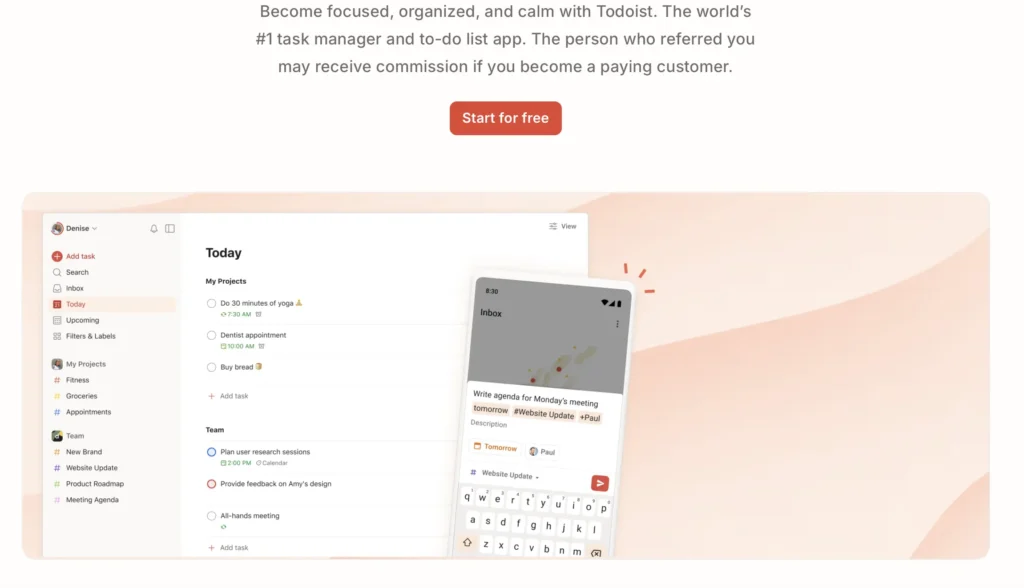
You need a free ChatGPT account and a free Todoist account. Both take under two minutes to set up and neither requires a paid plan to follow this guide.
Here is what to have ready:
That is it. No integrations, no third-party apps, no API keys. This is a manual copy-paste workflow that anyone can follow on day one.
One optional upgrade worth knowing: Todoist’s free plan allows up to 5 active projects and 150 tasks per project, which is more than enough for most beginners. If you eventually want recurring tasks, reminders, and filters, the Pro plan is $4/month.
How do you use ChatGPT to create a task list?
Use ChatGPT to generate tasks by describing your goal clearly and asking it to break the goal into specific, numbered action steps. The more specific your prompt, the better the output.
Here is the process step by step:
Step 1: Open ChatGPT Go to chat.openai.com and log in to your free account.
Step 2: Describe your goal Type a prompt like this:
“I want to [your goal]. Break this down into specific daily tasks I can complete in 30 minutes or less each. Give me a numbered list.”
For example: “I want to start a blog about AI for beginners. Break this down into specific daily tasks I can complete in 30 minutes or less each. Give me a numbered list.”
Step 3: Review and refine ChatGPT will return a numbered list. If a task feels too vague, ask it to break that task down further. “Can you break step 3 into smaller sub-tasks?” works perfectly.
Step 4: Copy the list Highlight the full task list and copy it. You will paste it into Todoist next.
A useful rule of thumb: each task ChatGPT generates should be something you could complete in a single sitting. If a task would take more than two hours, ask ChatGPT to split it into smaller chunks.
How do you organize ChatGPT tasks in Todoist?
Add your ChatGPT tasks to Todoist by creating a new project, pasting each task as a separate to-do item, and assigning due dates and priority levels. This turns a raw list into a trackable plan.
Follow these steps:
Step 1: Create a project In Todoist, click the “+” icon next to “My Projects” in the left sidebar. Name it after your goal, for example “Launch AI Blog.”
Step 2: Add your tasks Click “Add task” inside the project. Paste each ChatGPT task as its own item. Do not dump the whole list into one task field. One task per line.
Step 3: Set due dates Click the calendar icon on each task and assign a date. Start with the next 7 days. Do not schedule everything at once — over-scheduling is a common beginner mistake that leads to burnout.
Step 4: Set priorities Todoist uses a four-level priority system (P1 to P4). Mark your most important tasks P1 (red). Everything else can be P2 or P3. This prevents the trap of always working on easy tasks while important ones sit untouched.
Step 5: Check in daily Each morning, open Todoist’s “Today” view. It shows only the tasks due that day. Work from this view and ignore everything else.
Research published by the American Psychological Association found that difficult goals were completed about three times more often when people attached specific action steps to them, compared to holding a vague intention alone. Breaking tasks into concrete steps is not just good habit — it is backed by decades of goal-setting science.
What are the best ChatGPT prompts for Todoist planning?
The best ChatGPT prompts for productivity planning are specific, time-bounded, and ask for numbered lists. Vague prompts produce vague tasks.
Here are prompts I have tested and use regularly (tested June 2026):
For weekly planning:
“It’s Monday. I have these goals this week: [list your goals]. Create a daily task list for Monday to Friday, with each task taking no more than 45 minutes.”
For breaking down a big project:
“I need to complete [project]. Break this into 10 specific tasks a complete beginner can do. Number them in logical order.”
For clearing a backlog:
“I have these tasks I keep avoiding: [list them]. For each one, suggest the single smallest first step I could take in under 15 minutes.”
For building a habit:
“I want to build a habit of [habit]. Create a 30-day daily task plan with one small action per day, increasing gradually in difficulty.”
Prompt formatting tip: Always end your prompt with “Give me a numbered list I can copy into a task manager.” This signals ChatGPT to format the output cleanly, which makes pasting into Todoist much faster.
Does this actually work? My honest experience
I tested the ChatGPT and Todoist method for four weeks across three different goal types: content planning for this blog, learning a new skill, and managing a home project. Here is what I found.
The biggest win was on content planning. I asked ChatGPT: “I run an AI blog for beginners. Plan my content calendar for the next two weeks, with one article per week and three supporting tasks per article.” It returned a complete, logical plan in under 30 seconds. I copied it into a Todoist project and had a full two-week workflow in less than five minutes.
The biggest limitation is that ChatGPT does not know your calendar, your energy levels, or your competing priorities. It generates a perfect plan in a vacuum. You still have to apply judgment when setting due dates in Todoist. I found it helpful to cut about 30% of the tasks ChatGPT suggested — it tends to be ambitious.
My honest verdict: this combination works best as a planning tool, not a complete productivity system. Use ChatGPT to go from “I have a vague goal” to “I have a specific list.” Use Todoist to execute that list. Do not over-engineer it.
If you want to try Todoist, you can sign up for a free account here — the free plan is genuinely enough to run this workflow.
Frequently Asked Questions
Does Todoist integrate directly with ChatGPT?
There is no official native integration between Todoist and ChatGPT as of June 2026. The workflow in this guide is manual: you generate tasks in ChatGPT and copy them into Todoist. Some third-party automation tools like Zapier offer experimental connections, but for beginners the manual approach is faster to set up and easier to control.
Is Todoist free to use?
Yes. Todoist has a free plan that includes up to 5 active projects, 150 tasks per project, and basic task management features. The Pro plan ($4/month) adds reminders, filters, and calendar integrations, but the free plan is sufficient for the workflow described in this guide.
Can I use a different task manager instead of Todoist?
Yes. The ChatGPT planning method works with any task manager including Notion, Apple Reminders, Google Tasks, or even a plain spreadsheet. Todoist is recommended here because its free plan is generous, its interface is clean, and it works well on both mobile and desktop without a learning curve.
How often should I use ChatGPT for task planning?
A weekly planning session works well for most people. Every Monday, spend 5–10 minutes with ChatGPT to generate or refine your task list for the week, then load it into Todoist. Daily check-ins in Todoist take about 2 minutes using the “Today” view.
Do I need the paid version of ChatGPT?
No. The free version of ChatGPT (GPT-4o mini) handles task planning prompts very well. The paid ChatGPT Plus plan ($20/month) offers faster responses and access to more powerful models, but it is not necessary for this workflow.

1 comment
[…] such as Todoist, TickTick or Apple Reminders paired with a chatbot covers a lot, as shown in our ChatGPT and Todoist guide. If you are new to ChatGPT itself, start with our ChatGPT guide for […]