
TL;DR
- You can add a professional voiceover to any video by typing a script into an AI text-to-speech tool, no microphone needed.
- Murf AI converts your text into realistic narration with 200+ voices across 30+ languages, starting free.
- The whole process takes under 10 minutes: paste your script, pick a voice, download the audio, and sync it to your video.
- ElevenLabs and Clipchamp are solid free alternatives for simpler projects.
- AI voiceovers are used by YouTubers, course creators, and businesses to cut production time by up to 70%.
Recording your own voice sounds simple in theory. In practice, it means finding a quiet room, buying decent audio equipment, re-recording every time you stumble over a word, and then spending time cleaning up the audio in editing software.
For most beginners making YouTube videos, online courses, or social media content, that process is a barrier that stops them publishing at all.
AI voiceover tools solve this completely. You type your script, choose a voice, and download a professional-sounding narration in minutes. No microphone, no soundproofing, no editing. I tested this workflow myself across a handful of short videos, and it genuinely removes the biggest friction point in video production for beginners.
Here is exactly how to do it.
What Is an AI Voiceover?
An AI voiceover is a computer-generated voice that reads your script aloud. You type the text, and the AI converts it into spoken audio that sounds like a real human voice — with natural intonation, pauses, and emphasis.
Modern AI voiceover tools have closed the quality gap significantly. A 2025 study by Ziptie found AI-referred content sessions grew 527% year-over-year, with voiceover-assisted video content among the fastest-growing formats. Platforms like Murf AI use what they call Speech Gen 2 technology to produce narration that is difficult to distinguish from a professional voice artist at normal listening speed.
The practical applications are wide. YouTubers use AI voices to narrate explainer videos without appearing on camera. Course creators use them to add narration to slide presentations. Marketing teams use them to produce product demos at scale without booking studio time.
What Do You Need Before You Start?
Before you begin, have two things ready:
- Your video file. Any format works — MP4, MOV, and AVI are all standard.
- A written script. This is the text the AI will read aloud. Even a rough, bullet-point version is fine to start. You can refine it once you hear how the voice sounds.
That is genuinely all you need. No account on most free tiers, no software to install, and no audio equipment.
One useful habit: write your script the way you would speak it, not the way you would write an email. Short sentences, contractions, and natural pauses make the AI output sound far more human. More on this in the tips section below.
How to Add a Voiceover to a Video Without Recording: Step by Step
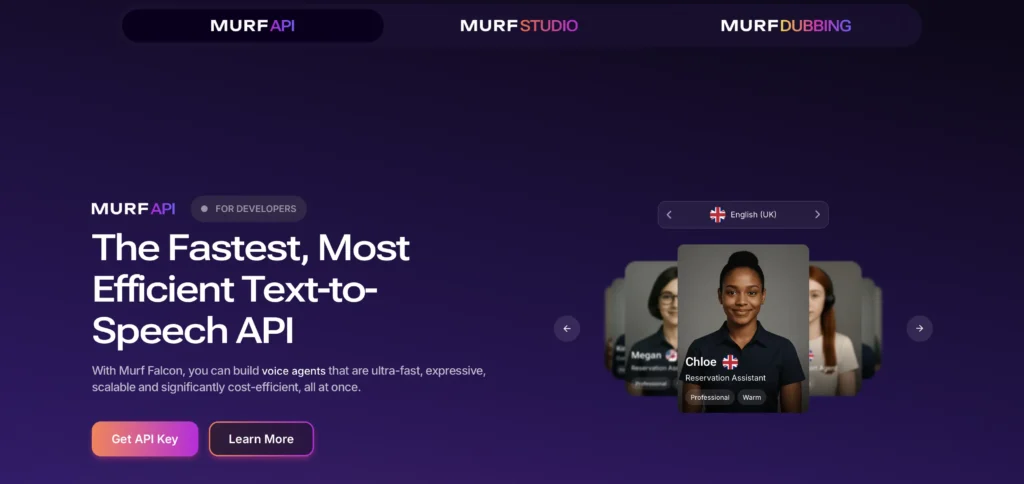
Adding an AI voiceover to a video takes five steps. This walkthrough uses Murf AI, which is the tool I found most beginner-friendly after testing several options in June 2026.
Step 1. Create a free Murf AI account
Go to Murf AI and sign up for free. The free plan gives you 10 minutes of voice generation to test the tool before committing to anything.
Step 2. Create a new project and paste your script
Once inside the Murf Studio dashboard, click “Create new project.” You will see a text editor. Paste your script directly into the box. Murf splits it into sections automatically, which makes editing individual lines easy later.
Step 3. Choose a voice
Murf offers 200+ voices across 30+ languages. Filter by language, gender, age, and style (e.g. “conversational,” “professional,” “narrator”). Click any voice to preview it with your own script text. For most beginner YouTube videos, a conversational English narrator voice works well as a starting point.
Step 4. Adjust speed, pitch, and emphasis
This is where Murf earns its reputation. You can slow down or speed up individual sentences, add emphasis to specific words, and insert pauses exactly where you need them. A 10–15% slower speed than the default tends to sound more natural for explainer content.
Step 5. Export the audio and sync it to your video
Click “Export” and download the voiceover as an MP3 or WAV file. Then open your video editor of choice (CapCut, iMovie, DaVinci Resolve, or even Canva), import both your video file and the audio file, and drag the audio track to align with your footage.
Total time from script to exported audio: under 10 minutes for a 2–3 minute video.
Which AI Voiceover Tool Is Best for Beginners?
Murf AI is the strongest option for most beginners, but two alternatives are worth knowing about.
| Tool | Best for | Free plan | Paid plan starts at |
|---|---|---|---|
| Murf AI | Quality narration, full studio control | 10 min total | $19/month (annual) |
| ElevenLabs | Very realistic voices, quick one-off clips | Limited monthly credits | $5/month |
| Clipchamp | Beginners already using Windows / Microsoft 365 | Yes, built into Windows | Included in M365 |
Murf AI is the best choice if you plan to create content regularly. The studio interface lets you fine-tune every sentence, it integrates with Canva and Google Slides, and the Creator plan ($19/month billed annually, or $29/month monthly) includes commercial usage rights, which you need if you are monetising videos on YouTube or selling a course. The free plan covers enough to test the tool properly before spending anything.
ElevenLabs is worth trying if you want the most realistic-sounding voices for a single project. The free tier is more limited than Murf’s in terms of studio controls, but the raw voice quality is excellent for short clips.
Clipchamp is a sensible option if you are on Windows and want zero friction. It is built into Windows 11, free, and handles basic voiceover generation without requiring a separate account. The voice quality is noticeably more synthetic than Murf or ElevenLabs, but it works fine for simple social media content.
For anyone making content consistently, Murf AI hits the right balance of quality, control, and price.
Tips to Make Your AI Voiceover Sound More Natural
AI voices have improved dramatically, but a few simple adjustments make a noticeable difference.
Write short sentences. Long, complex sentences cause AI voices to rush or stumble. Sentences under 20 words consistently sound cleaner.
Use commas and full stops as pacing tools. AI voices pause at punctuation. A comma mid-sentence creates a natural breath. A full stop creates a longer pause. You can control the entire rhythm of the narration just by adjusting your punctuation.
Avoid acronyms without context. “AI” is fine. “RAG” or “LLM” will often be mispronounced unless you spell out the full term first. Murf includes a Pronunciation Library where you can define custom pronunciations for specific terms, which is useful for technical content.
Preview before exporting. Always play back the full narration before downloading. One mispronounced word mid-video is jarring enough to distract viewers from the content.
Match voice to content tone. A conversational voice suits a casual explainer. A neutral, measured narrator voice suits a training video or course. Spending 2–3 minutes auditioning voices upfront saves editing time later.
Frequently Asked Questions
Is an AI voiceover free to use commercially?
It depends on the tool and plan. Murf AI’s free plan does not include commercial usage rights, meaning you cannot legally use it on monetised YouTube videos or paid courses. The Creator plan ($19/month billed annually) includes full commercial rights. Always check the licence terms before publishing.
How long does it take to create an AI voiceover?
For a 2–3 minute video with a ready-made script, the AI generation itself takes under a minute. Including time for voice selection, adjustments, and export, the full process takes 5–15 minutes.
Can I use an AI voiceover on YouTube?
Yes. AI voiceovers are permitted on YouTube under their standard content policies. You do need to ensure your tool’s licence covers commercial use if your channel is monetised. Murf AI’s Creator plan explicitly covers YouTube monetisation.
What is the best AI voice generator for beginners in 2026?
Murf AI is the most beginner-friendly option with a full studio interface, 200+ voices, and a free plan to try before paying. ElevenLabs is the better choice if raw voice realism is the priority.
Do I need a microphone to use these tools?
No. AI voiceover tools work entirely from typed text. A microphone is only needed if you want to clone your own voice, which is an optional feature on higher-tier plans.
Tested in June 2026 across multiple short-form video projects. All pricing accurate as of June 2026, check each tool’s pricing page for the latest rates.
