

Best starting point for a new browser-based deck: Gamma. Best for editing inside Google Slides or PowerPoint: Plus AI. Best for automatic layout: Beautiful.ai. Best for visual design alongside other assets: Canva. Best for a Microsoft-centered team: Copilot in PowerPoint. This guide compares the best AI presentation makers in 2026 by the work that remains after the first draft.
- Gamma is the default shortlist pick for a new browser-based presentation, not a guarantee of effortless PowerPoint handoff.
- Plus AI works inside Google Slides and PowerPoint; Beautiful.ai prioritizes automatic slide layout.
- Canva suits visual asset reuse; Copilot suits teams already working in Microsoft’s presentation environment.
- The best AI presentation makers preserve your meaning and deliver an editable file where your colleagues work.
Why this matters
A deck is useful only when someone can present it, correct it and share it in the required format. Generating slides is the beginning. Reviewing the argument and checking the handoff come afterward.
If you are already reconsidering your design tools, Boost With AI’s Canva AI alternatives guide covers the wider choice. This comparison stays focused on presentations: project proposals, training material, business updates and funding pitches.
Start with the recipient’s requirements. A browser link, an editable PowerPoint file and a PDF solve different problems, even when they contain the same slides.
What makes the best AI presentation makers?
Boost With AI prioritizes six criteria for this 2026 shortlist:
- Source handling: Can you supply an approved outline or document instead of asking the tool to invent your argument?
- Editing location: Will corrections happen in the generator, PowerPoint or Google Slides?
- Layout behavior: Does the slide remain readable when you replace a heading or add a sentence?
- Brand control: Can you apply the right theme and assets without restyling each slide?
- Handoff quality: Are text, tables and charts editable in the recipient’s application?
- Review effort: Can you correct one slide without rebuilding the surrounding deck?
These are buying criteria, not benchmark scores. None of the recommendations below implies a timed hands-on test or a measured improvement in presentation quality.
Best AI presentation makers at a glance
| Tool | Best for | Documented strength | Main limitation to check |
|---|---|---|---|
| Gamma | Starting a browser-based deck from source material | Imports, editable content and common export formats | Exported slides lack a PowerPoint slide master |
| Plus AI | Working inside Google Slides or PowerPoint | Native creation, rewriting and layout changes | Requires its add-on and an appropriate account setup |
| Beautiful.ai | Keeping layouts aligned while content changes | Smart Slides automatically resize and align content | Animations and transitions do not survive external export |
| Canva | Combining presentations with visual assets | AI drafts, drag-and-drop editing and media tools | Check the exported file rather than assuming identical behavior |
| Copilot in PowerPoint | Using Microsoft documents and company templates | Presentation creation within PowerPoint | Feature access depends on your license and account |
The order follows workflow fit for an owner starting a new deck. If your colleague must edit the result in PowerPoint, that requirement can move Plus AI or Copilot ahead of Gamma.
1. Gamma: best AI presentation maker for a new browser-based deck
Gamma turns prompts and source material into presentations you can edit in its own environment. Its documentation covers importing documents, slides and webpages, then preserving the source or asking for a revised structure.
Gamma is Boost With AI’s default starting point for an owner creating a new browser-based deck. The recommendation changes when a recipient’s established slide template is the main constraint.
Where Gamma fits
Suppose you have approved notes for a workshop. Import that material, tell Gamma which wording must remain unchanged and review the outline before generating the finished deck.
That instruction matters. Asking for a fresh presentation and asking to preserve an approved explanation are different jobs; your prompt should say which one you want.
Gamma pros:
- Accepts existing documents, presentation files and webpage content.
- Lets you direct whether source text should be preserved or rewritten.
- Exports to PDF, PNG and PowerPoint, with a route into Google Slides through a PowerPoint file.
Gamma cons:
- Exported PowerPoint and Google Slides files do not include a slide master layout.
- Some effects, fonts or imported chart elements need checks after conversion.
Best for: Owners starting a workshop, project proposal or explanatory deck without a fixed slide-production process.
Verdict: Choose Gamma for a new browser-first deck; hold if maintaining an existing PowerPoint master is essential.
For your 2026 evaluation, export before committing to the tool. Edit a table and a heading in the destination application, not just in Gamma.
2. Plus AI: best for Google Slides and PowerPoint editing
Plus AI works as an add-on inside Google Slides and PowerPoint. Its official site describes generating presentations from prompts or files, rewriting existing content and changing layouts through its Remix feature.
The advantage is where the work happens. If colleagues already review and revise slides in those applications, you do not need to introduce a separate presentation editor for every correction.
Where Plus AI fits
A manager needs to turn an approved project document into a staff update. Start with the source file, build the deck in the application the team already uses and keep revisions there.
Plus AI also supports inserting individual slides. That makes it relevant when an existing deck needs a new section rather than a complete replacement.
Plus AI pros:
- Creates and edits content inside Google Slides and PowerPoint.
- Supports rewriting text and remixing existing slide layouts.
- Accepts source files rather than requiring every presentation to begin with a short prompt.
Plus AI cons:
- You need to install the add-on and confirm it is permitted for your account.
- Working in a familiar application does not guarantee that the generated story or chart is accurate.
Best for: Teams that exchange editable PowerPoint or Google Slides decks and want to keep that workflow.
Verdict: Choose Plus AI for native slide editing; skip a separate generator if moving files between tools is your biggest frustration.
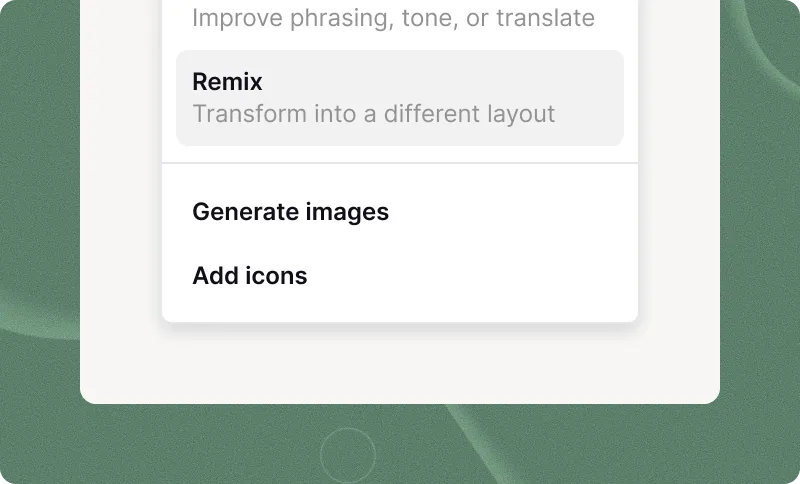
Official Plus AI product illustration: Remix changes a slide’s layout within the editing workflow. Source: Plus AI website, checked November 13, 2026. This is vendor material, not a Boost With AI test screenshot.
3. Beautiful.ai: best for automatic slide layout
Beautiful.ai combines AI presentation creation with Smart Slides: layouts that automatically align and resize content as you edit. Its documented workflow lets you shape an outline before generating the designed slides.
Choose it when keeping a deck visually orderly is the recurring problem. Automatic arrangement is the attraction, not permission to include more content than the audience can read.
Where Beautiful.ai fits
A small team produces recurring operational updates with timelines, comparisons and status summaries. Start with repeatable slide structures, then change the content without manually repositioning every element.
Review the outline first. A well-aligned deck with the wrong sequence still makes a confusing presentation.
Beautiful.ai pros:
- Smart Slides adjust spacing, alignment and sizing as content changes.
- Supports outline review before generating finished slides.
- Offers editable PowerPoint and Google Slides exports on eligible subscriptions.
Beautiful.ai cons:
- External exports lose Beautiful.ai animations and transitions.
- Editable export and image-based export are different options; fonts also need checking.
Best for: Teams producing repeatable business decks where layout maintenance consumes attention.
Verdict: Choose Beautiful.ai for guided layout; hold if the exported version must preserve every native animation.
Its export guide makes a useful distinction: a PowerPoint containing static slide images is not the same deliverable as an editable PowerPoint. Confirm which export you selected before sending it to someone who needs to make changes.
4. Canva: best for presentations alongside visual assets
Canva offers AI-assisted presentation drafting within its wider design editor. You can refine the draft, add uploaded images or video and use its other design tools to develop the slides.
Canva’s distinct role is the surrounding visual work. Shortlist it when the presentation belongs beside training graphics, handouts or other material you already maintain there.
Where Canva fits
An owner needs a workshop deck and a matching participant handout. Start with an outline, use approved visuals and keep the terminology consistent across both assets.
Resist the urge to judge the deck by its decoration. Each illustration should explain the point beside it rather than compete with it.
Canva pros:
- Combines AI drafting with a drag-and-drop editor.
- Lets you upload photos, graphics and video to refine a deck.
- Supports presenting in Canva and sharing through common presentation formats.
Canva cons:
- Access to AI features depends on the account and plan.
- A visually rich presentation still needs a separate export check in the recipient’s software.
Best for: Owners who want slides and accompanying visual materials in the same design environment.
Verdict: Choose Canva for an existing visual-design workflow; wait if your only requirement is strict native PowerPoint editing.
For 2026, evaluate the actual feature your account exposes rather than following an old tutorial’s button names. Canva’s current pages use several AI presentation labels across its creation and help content.
5. Copilot in PowerPoint: best for Microsoft-centered teams
Copilot can help create presentations within PowerPoint using a prompt and reference material. Microsoft also documents starting with an organization’s template so the presentation follows its theme and layouts.
This is a workflow recommendation, not a reason to buy another tool automatically. Confirm that the required presentation features are available in your existing account first.
Where Copilot fits
A business already keeps an approved project brief in Microsoft’s document environment and presents through a company PowerPoint template. Begin with that template, provide the approved material and review the proposed structure.
Keep source access in mind. A colleague’s ability to open a document does not tell you whether your own account can use it as reference material.
Copilot in PowerPoint pros:
- Works within PowerPoint rather than requiring a new presentation environment.
- Supports presentation creation from a prompt and reference content.
- Can use an organization’s existing template as a starting point.
Copilot in PowerPoint cons:
- Supported reference-file options and features depend on account and licensing.
- A company template still needs suitable layouts and a human review of the generated content.
Best for: Microsoft-centered teams that want assistance without changing their slide application.
Verdict: Choose Copilot when PowerPoint and Microsoft source documents are already the standard; hold until account access is confirmed.
Compare finalists using the same real brief
Use a small project instead of a vague request for an impressive deck. For example, write an 8-slide brief for a 10-minute workshop, then ask 2 colleagues to review the result. These are suggested evaluation inputs, not product limits or research findings.
Give each tool the same approved source material. Specify the audience, the decision or task the presentation supports, and the claims it must not invent.
Run these checks:
- Meaning: Does each slide preserve the source’s qualifications and conclusions?
- Correction: Can you replace a heading without breaking its layout?
- Evidence: Do charts use the actual source data and correct units?
- Handoff: Can the recipient edit the text and tables they need to change?
- Delivery: Does the final file open properly on the device used for presenting?
Record the corrections required after generation. An attractive first version that creates difficult revisions is not necessarily the best AI presentation maker for your business.
How Boost With AI ranked these tools
This 2026 comparison ranks documented workflow fit, source handling, layout behavior and handoff requirements. It does not claim measured speed differences or hands-on testing.
Official product and support pages were checked on November 13, 2026. In particular, Gamma’s import and export guidance, Beautiful.ai’s export documentation, Plus AI’s editing features, Canva’s presentation guidance and Microsoft’s Copilot instructions informed the trade-offs.
The most consequential export details are documented in Gamma’s export guide and Beautiful.ai’s export guide. Check those conditions against the file you actually need.
Which AI presentation maker should you choose?
Choose Gamma if you are starting a new browser-based deck without a fixed editing environment. Choose Plus AI for Google Slides or PowerPoint handoff, Beautiful.ai for automatic layout, Canva for wider visual asset work, or Copilot for an established Microsoft workflow.
The practical buying rule for 2026 is to choose the destination before the generator. If another person must revise the presentation, their editing requirements belong in your decision from the beginning.
FAQ
What is the best AI presentation maker for a small business?
Gamma is Boost With AI’s default first evaluation for a new browser-based deck. Choose Plus AI or Copilot instead when editing inside an established slide application is the main requirement.
Which AI presentation maker works inside Google Slides?
Plus AI works inside Google Slides and can generate, rewrite and reformat slides there. Confirm that your account permits installing the add-on.
Can Gamma export to PowerPoint?
Yes. Gamma supports PowerPoint export, but the exported file does not include a slide master layout. Check fonts, editable elements and the final appearance before sharing.
Are Beautiful.ai PowerPoint exports editable?
Beautiful.ai offers an editable PowerPoint export on eligible subscriptions. It also offers an image-based PowerPoint export, so confirm you chose the editable option.
Is Canva a good choice for business presentations?
Canva suits owners who want presentation drafting alongside visual editing and related design materials. Test the final export if colleagues will work outside Canva.
Should I choose Copilot if I already use PowerPoint?
Shortlist Copilot when your team already uses PowerPoint, company templates and Microsoft source documents. Confirm your license includes the presentation features you need before deciding.
Can I trust the facts in an AI-generated presentation?
Check every factual claim against approved source material. A polished layout does not verify a statistic, customer quote or business promise.
One last thing
Ask a colleague to change a heading and a table in the file you intend to deliver. If those ordinary edits fail, you have found a handoff problem before it becomes someone else’s deadline.
Related guides
- Best AI App Builders in 2026
- Claude Motion: turn reports and charts into animated videos
- Free AI courses for project managers
