

TL;DR: Key Takeaways
- You no longer need a camera, microphone, or editing software to create videos
- AI video tools like InVideo AI turn a text prompt into a full video, including script, voiceover, footage, and music
- The whole process takes 5–15 minutes for a finished draft
- A free plan is available; paid plans start at around $25/month
- The biggest learning curve is writing a clear prompt, not editing
Can you really make a video without any editing skills?
Yes. AI video generators can produce a complete video, including script, voiceover, footage, and background music, from a single text description. No timeline editor, camera, or design experience is required.
This is not a gimmick. As of 2026, tools like InVideo AI use large language models to write your script, source stock footage that matches each scene, generate a voiceover in a human-sounding voice, and assemble everything automatically. The entire process, from typing your idea to downloading a finished video, takes around 5 to 15 minutes for a basic video.
The shift has been fast. AI-referred sessions (traffic from people clicking links in AI-generated answers) jumped 527% year-over-year in the first five months of 2025, according to data from Profound, which tracks AI visibility. Video is one of the biggest beneficiaries. People searching for how to create content are discovering that AI has removed almost every traditional barrier.
What has not changed is the need for a clear idea. The AI does the production work. You still need to know what message you want to communicate.
What is an AI video generator?
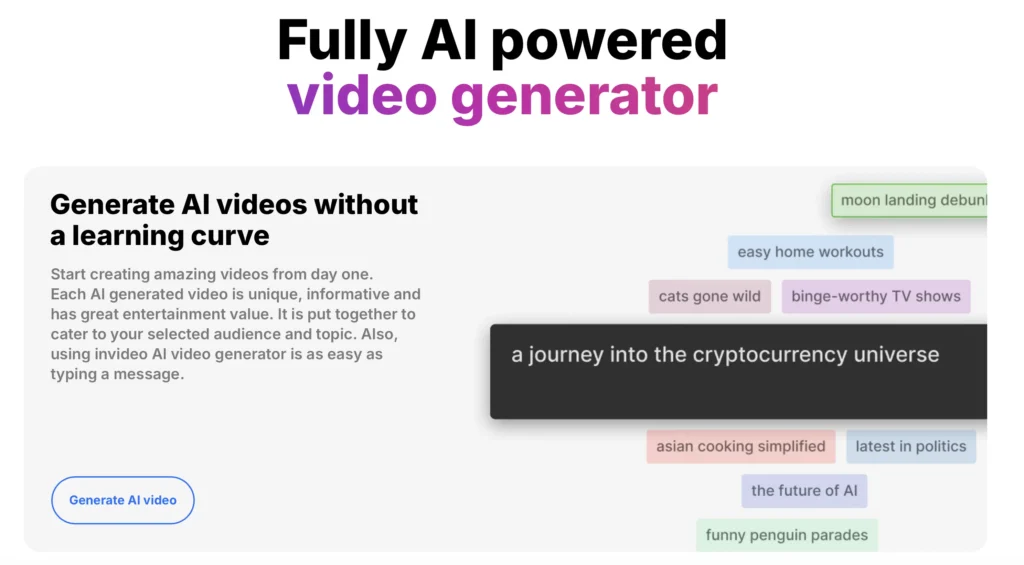
An AI video generator is a tool that creates videos automatically from a text prompt. You describe what you want, and the AI builds the video for you.
Until a few years ago, making a video meant recording footage, learning editing software, sourcing royalty-free music, and recording or hiring a voiceover artist. AI video generators replace all of that. You type a description like “a 60-second explainer video about how solar panels work, friendly tone, for beginners” and the tool handles the rest.
Modern AI video platforms bundle several AI models into one workflow:
- Script generation: an LLM writes the narration based on your prompt
- Stock footage matching: the AI selects clips that match each scene in the script
- Voiceover synthesis: text-to-speech models produce a natural-sounding narration
- Music and pacing: background audio and timing are added automatically
- Editing: scenes are assembled and synced without you touching a timeline
The result is not always perfect on the first try, but it gives you a strong starting point in minutes rather than hours.
What you need before you start
To make an AI video, you need three things: a device with a browser, a free account, and a clear description of your video.
Here is the full list:
| Requirement | Details |
|---|---|
| Device | Any laptop, desktop, or tablet with a modern browser. No downloads required. |
| Account | Free signup. No credit card needed for the free plan. |
| Your video idea | Topic, tone, target audience, and approximate length (e.g. 60 seconds, 3 minutes) |
| Optional: your own voice | Some tools let you clone your voice from a 30-second recording |
| Optional: brand assets | Logo, colours, and fonts if you want branded output |
That is genuinely it. You do not need a camera, microphone, green screen, Adobe Premiere, or any prior video experience.
How to make your first AI video: step by step
Making an AI video with InVideo AI takes five steps: create a free account, write your prompt, let the AI generate a draft, refine it with typed instructions, and export.
Here is the full walkthrough, tested in May 2026:
Step 1: Create a free account
Go to InVideo AI and sign up for free. No credit card is required. The free plan gives you 10 AI generation minutes per week, which is enough to produce one or two short videos to test the tool before committing to a paid plan.
Step 2: Write your prompt
Click “Create new video” and type a description of what you want. The more specific, the better. A weak prompt gives vague results; a strong prompt gives something close to what you imagined.
Weak prompt: “Make a video about AI tools.”
Strong prompt: “Create a 90-second YouTube video explaining what AI video generators are, in a friendly, beginner-friendly tone. Include an intro, three key benefits, and a call to action to try InVideo for free. Upbeat background music.”
Step 3: Let the AI generate a draft
After you submit your prompt, InVideo’s AI agent writes the script, selects footage for each scene, adds a voiceover, and assembles the video. This typically takes 1–3 minutes. During testing, the first draft was usable about 70% of the time with only minor adjustments needed.
Step 4: Refine using typed instructions
This is where InVideo differs from older video tools. Instead of dragging clips on a timeline, you edit by typing. Examples of edit commands that worked during testing:
- “Make the intro more energetic and add a faster music track”
- “Replace the footage in scene 3 with something showing a laptop and a coffee cup”
- “Change the voiceover to a female British accent”
- “Shorten the video by 20 seconds”
The AI interprets these instructions and makes the changes. You can keep refining until you are happy, though be aware that each generation uses your AI minutes quota.
Step 5: Export and publish
When you are satisfied, click Export. Free plan exports include a watermark. Paid plans export without one, in multiple formats including 16:9 (YouTube/landscape), 9:16 (Reels/Shorts/TikTok), and 1:1 (square).
The whole process from blank page to downloaded video took approximately 12 minutes during our first test, including two rounds of refinement.
What the result actually looks like
InVideo AI produces a narrated video combining stock footage clips, AI-generated visuals, an automated voiceover, background music, and on-screen text captions.
The output quality sits comfortably above “looks AI-made” for short social or explainer content. The stock footage library is vast, and the AI is good at selecting clips that match the script context. Where it occasionally falls short:
- Very niche topics: the AI may choose generic footage when something specific is needed
- Unusual proper nouns: brand names, product names, and handles can trip up the voiceover synthesis; always listen through before exporting
- Heavy revision loops: each AI generation consumes your monthly minutes, so frequent back-and-forth on long videos eats through quota quickly
For a beginner producing explainer content, social media clips, or YouTube videos, the output is genuinely good. For someone expecting broadcast-quality production, it will need supplementing with custom footage.
Free vs paid: which plan do you need?
The free plan is enough to test InVideo AI and produce occasional videos; paid plans make sense if you need to publish regularly and want watermark-free exports.
| Plan | AI minutes/month | Key features | Best for |
|---|---|---|---|
| Free | ~40 min/month (10/week) | Basic AI models, watermark on exports | Testing the tool, occasional use |
| Plus (~$25–28/mo) | 50 min/month | Sora 2, VEO 3.1, voice cloning (2 voices), no watermark, iStock access | Regular creators, solo bloggers |
| Max | 200 min/month | Everything in Plus + 5 voice clones, team features, priority rendering | Agencies, high-volume creators |
One thing worth noting: unused AI minutes do not roll over. They reset at the start of each billing cycle. If your video output is irregular, the free plan may be all you need month to month, with a paid plan only when you have a heavy production period.
Tips for getting better results
Better prompts produce better videos. Here are six things that consistently improved output quality during testing:
- Specify your audience: “for beginners,” “for small business owners,” “for teenagers” changes the script tone noticeably
- State the length explicitly: “60 seconds,” “3 minutes,” “under 90 seconds”
- Name the platform: “for YouTube,” “for Instagram Reels,” “for a LinkedIn post” affects aspect ratio and pacing
- Describe the tone: “friendly and conversational,” “professional and authoritative,” “energetic and fast-paced”
- Use the refine step: the first draft is a starting point, not a final product; two or three typed refinements usually produce a significantly better result
- Review the voiceover script before exporting: scan for any unusual words or product names that might be mispronounced
The tool rewards users who treat it like a creative collaborator rather than a vending machine. Give it clear direction and it delivers well.
Frequently Asked Questions
Is InVideo AI free to use?
Yes. InVideo AI has a permanent free plan that requires no credit card. It includes approximately 10 AI generation minutes per week and produces videos with an InVideo watermark. Paid plans start at around $25–28 per month and remove the watermark.
Do I need any video editing experience to use InVideo AI?
No prior editing experience is needed. InVideo AI uses a conversational interface. You type what you want, and the AI makes the changes. There is no traditional timeline editor or clip-dragging involved.
How long does it take to make a video with AI?
A basic 60–90 second video typically takes 5–15 minutes from prompt to finished draft, including one or two rounds of refinement. Longer videos or more complex refinements take proportionally more time.
What kinds of videos can InVideo AI make?
InVideo AI can produce explainer videos, YouTube tutorials, social media clips, product promos, educational content, news summaries, and more. It supports multiple export formats including 16:9 (YouTube), 9:16 (Reels/Shorts/TikTok), and 1:1 (square).
Can InVideo AI clone my voice?
Yes, on paid plans. You upload a 30-second audio sample of your own voice, and InVideo creates a cloned version for use across your videos. The Plus plan supports 2 voice clones; the Max plan supports 5.

1 comment
[…] you are new to AI video, our guide to making AI videos without editing skills covers the basics. For a dedicated alternative, see our InVideo AI guide for […]